

Overview
When you generate an episode, Henshu takes everything you’ve arranged in the editor and produces a final output file. This includes:- All sections in order
- All audio blocks with your cuts and mutes applied
- Pause blocks rendered as silence
- Background music mixed in per section (with volume, ducking, and fade settings applied)
- Enhanced audio where toggled on
How do I generate my episode?
- Make sure your episode is arranged the way you want. Check sections, audio blocks, and BGM assignments.
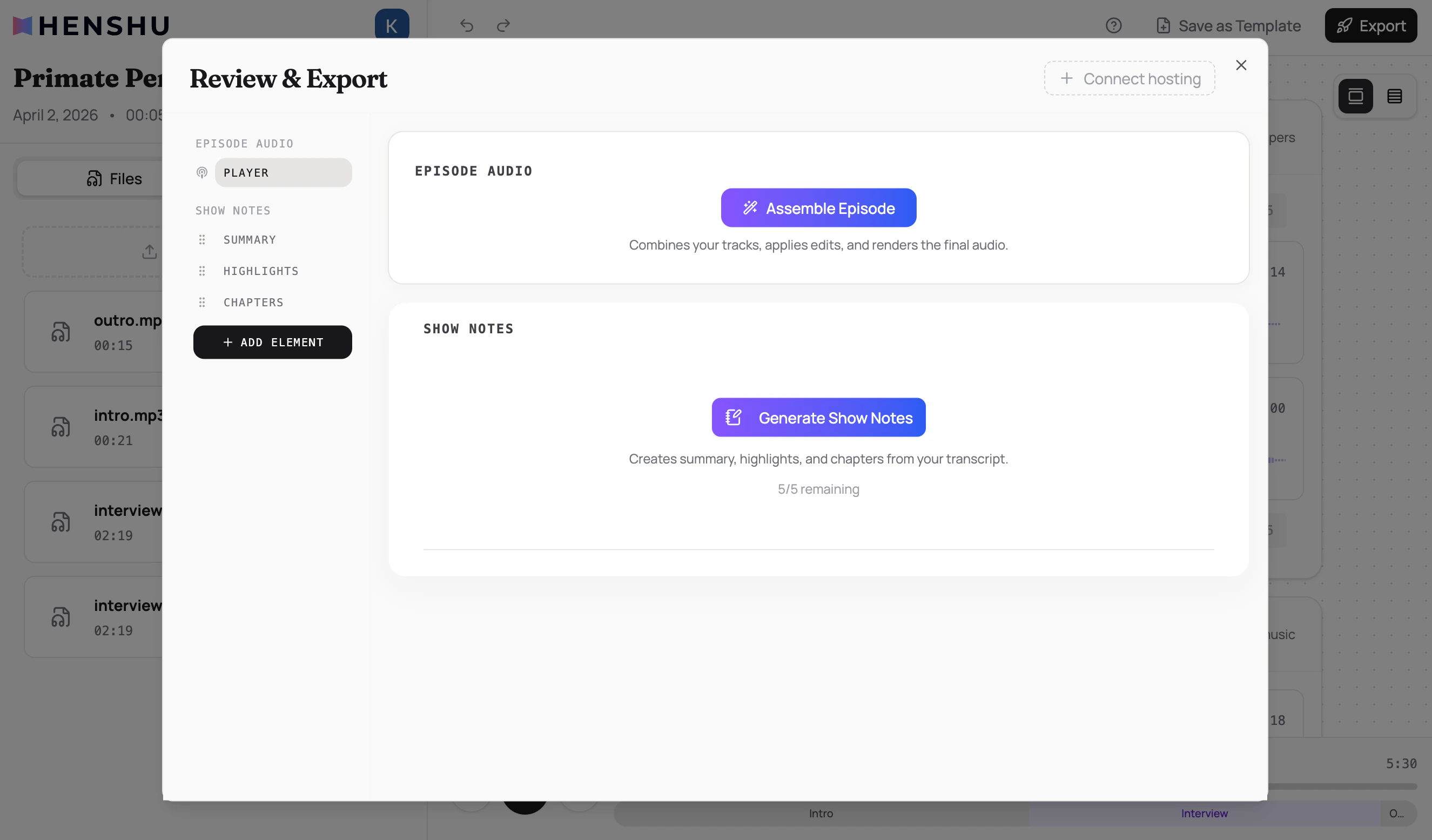
- Click Export in the top-right corner of the editor.
- In the dialog that opens, click Assemble Episode.
- Wait for processing to complete. You’ll see a progress indicator.
Key Details
- Generation runs in the cloud, so you can close the browser and come back later
- You can re-generate after making changes; the previous generated file is replaced
- Generation time depends on episode duration and complexity (sections, BGM, enhancements)
- Only audio placed in audio blocks within sections is included. Files sitting in the upload area but not placed in a block are excluded.
Common Issues
Generation seems stuck or is taking a long time Longer episodes with multiple sections and BGM tracks take more processing time. If generation seems stuck for more than 15 minutes, try refreshing the page. The generation process continues in the cloud even if you close the browser. Missing audio in the generated file Check that your audio files are placed in audio blocks within sections. Audio files that are uploaded but not placed in any audio block won’t be included in the generated output. Background music isn’t in the generated file Verify that BGM is assigned to the section(s) in the BGM panel. Also check that the play mode, volume, and fade settings are configured. Preview your episode before generating to confirm the music sounds right.Related
- Download & Publish: get your generated file
- Organizing Sections and Blocks: arrange your episode before generating
- Adding Background Music: BGM settings affect the generated output
- Concepts & Terminology: sections, blocks, and pauses