

Overview
Background music works at two levels. First, you build a music library for your show by browsing Henshu’s collection or uploading your own tracks. Then, you assign tracks from that library to individual sections in your episodes. Different sections can have different music, so your intro can have upbeat music while your interview has something subtle.Building your show’s music library
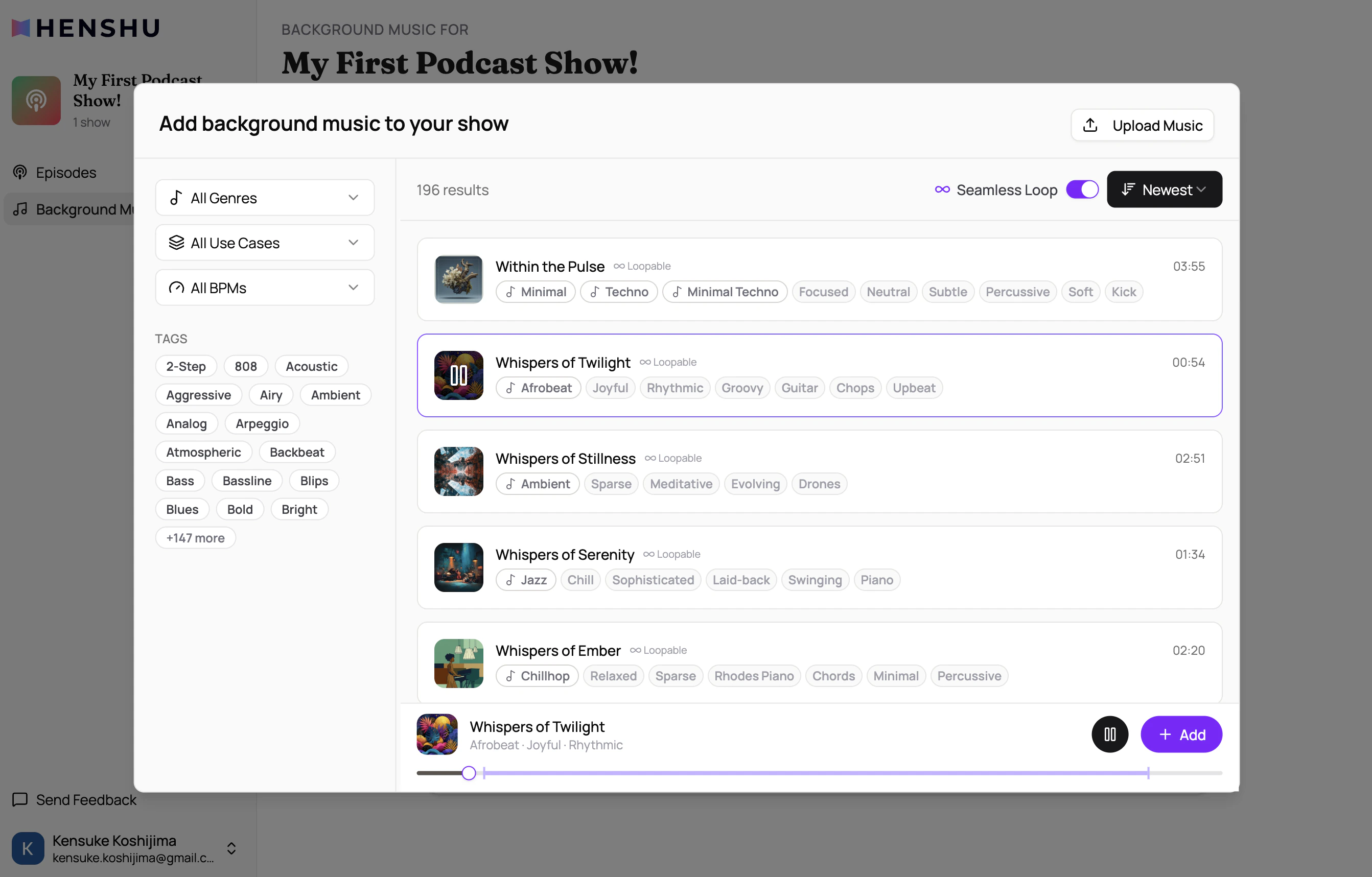
Before you can add music to sections, you need tracks in your show’s library. Adding from Henshu’s collection:- Open the BGM panel in the editor
- Browse the available tracks
- Add tracks you like to your show’s library
Adding music to a section
Once you have tracks in your show’s library:- Select the section you want to add music to
- Open the BGM panel and browse your show’s library
- Click a track to assign it to the section
- The music plays underneath your voice audio in that section
How do I adjust BGM settings?
Once a track is assigned to a section, you can configure:Volume
Set the music volume relative to your voice audio:- Normal: standard background level
- Louder: music is more prominent
- Quieter: music sits further back behind voice
Ducking
When ducking is enabled, the music volume automatically lowers during audio blocks and rises back up during pause blocks. This keeps the music from competing with your voice.Fade In / Fade Out
Set the duration (in seconds) for the music to fade in at the start of the section and fade out at the end. This creates smooth transitions instead of abrupt starts and stops.Play Mode
Choose how the music behaves when the section is longer than the track:
Smart Loop produces the most polished result for sections that are longer than the music track.
How do I remove BGM from a section?
To remove background music from a section, open the BGM panel for that section and click Remove (or deselect the current track). The section will play without any background music.Key Details
- BGM is per-section, not per-episode. Different sections can have different music.
- The music library is per-show. Add tracks once and use them across episodes.
- BGM settings (volume, ducking, fades, play mode) are independent for each section.
- Background music is mixed into the final file when you generate your episode.
- BGM does not appear as a waveform in the main editor. It plays during preview and is included in the generated output.