

Working with sections
Adding a section: Click Add Section below the existing sections. The new section appears at the end of the episode. Click the section title to rename it. Reordering sections: Drag sections to rearrange the order they play in your episode. Renaming a section: Click on the section title to edit it inline.Working with blocks
Saving your structure as a template
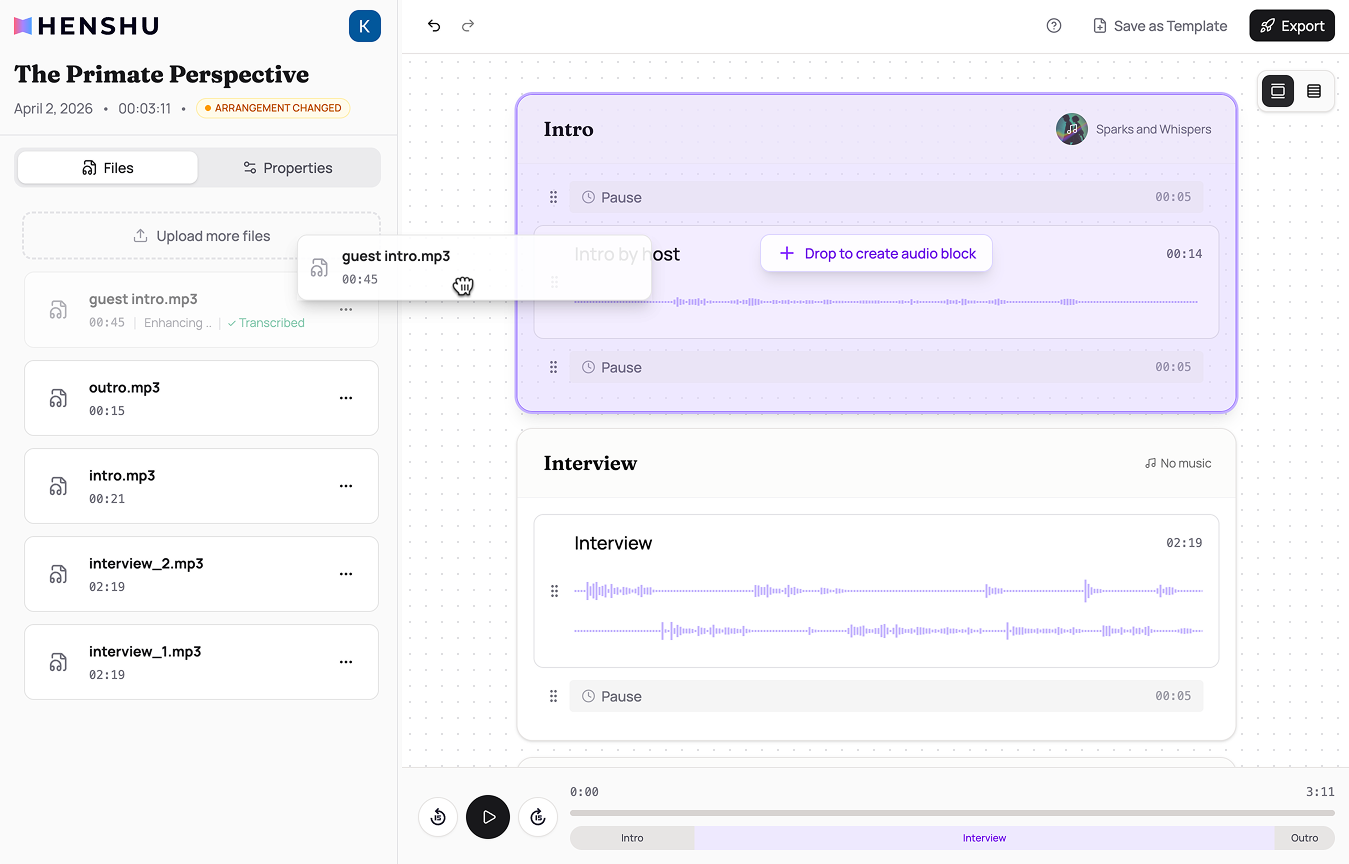
If you use the same episode format regularly (e.g., intro, interview, outro with specific BGM settings), you can save it as a template and reuse it for future episodes. Saving a template:- Set up your episode with the sections, blocks, and BGM assignments you want to reuse
- Click Save as Template in the top-right corner of the editor
- Give it a title and optional description
- Choose which audio files to include in the template (e.g., your standard intro recording)
- Templates are saved per show. Each show has its own templates.
- Templates save the structure: sections, blocks, BGM assignments, and optionally audio files.
- Templates don’t save edits (cuts, mutes) since those are specific to each episode.
- You can update a template by saving over it from a new episode.
Related
- Concepts & Terminology: what sections, audio blocks, and pause blocks are
- Uploading Audio: getting files into the editor
- Adding Background Music: BGM is assigned per section