

Overview
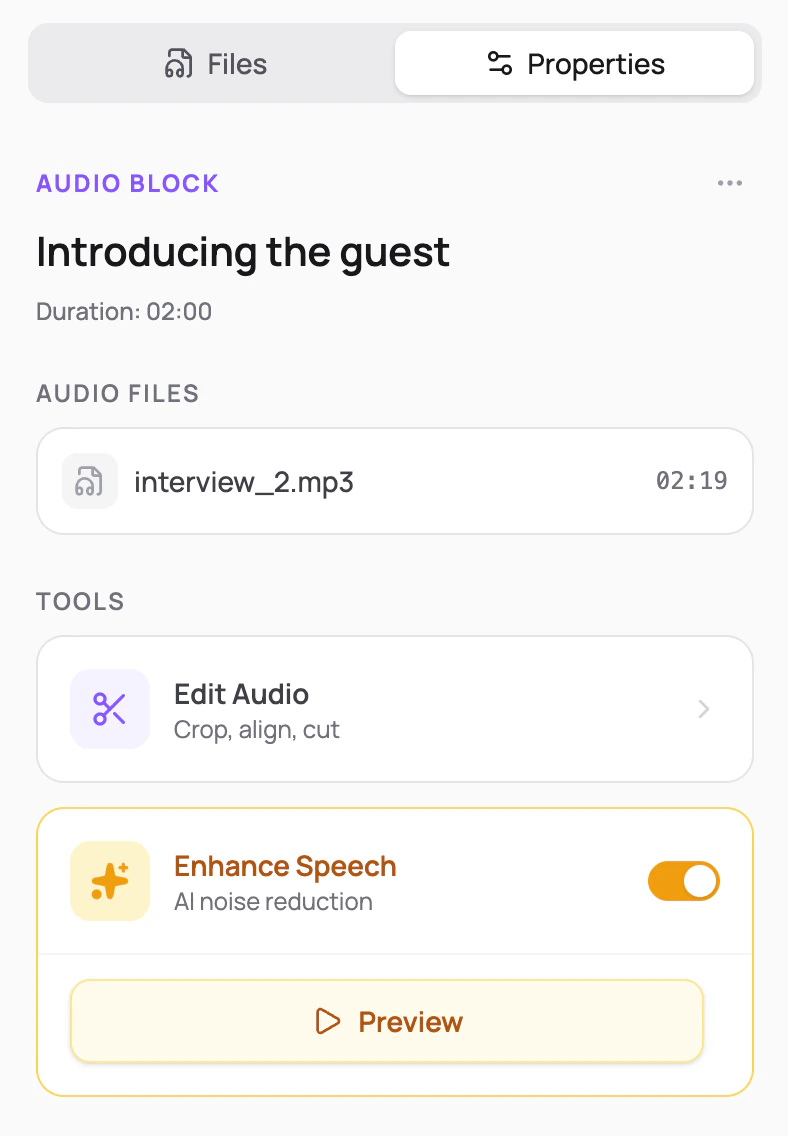
When you upload an audio file, Henshu runs it through an AI enhancement pipeline in the background. Both the original and enhanced versions are kept. You don’t need to trigger enhancement manually; it happens automatically. In the editor, you choose whether to use the enhanced or original version on a per-audio-block basis. The same audio file can appear in multiple audio blocks, with enhancement turned on in one and off in another.How do I toggle enhancement?
Each audio block has an enhancement toggle:- Off (default): uses the original, unprocessed version
- On: uses the enhanced version of the audio
What does enhancement do?
The pipeline runs three processing stages on your audio:- Noise reduction: strips out background noise, hum, and environmental sounds so listeners hear your voice, not your surroundings. You can record anywhere (even outside on a smartphone) and the pipeline will clean it up
- Mouth noise removal: detects and reduces breaths, lip smacks, and mouth clicks that are distracting at close range
- Tone optimization: shapes your voice with adaptive EQ and de-essing so it sounds warm and clear without harsh or tinny frequencies
- Volume leveling: brings all your audio to a consistent loudness, so listeners don’t have to adjust their volume between speakers or sections
When should I turn enhancement off?
Enhancement is designed for voice recordings. For non-voice audio like music, jingles, or sound effects, turn it off. The voice-focused processing can leave audible artifacts on non-speech content. Some signs you should toggle enhancement off for a block:- The audio is music or a jingle, not speech
- You hear artifacts or distortion in the enhanced version
- The original already sounds clean and doesn’t need processing
Important details
- Enhancement runs automatically when you upload a file. There’s no button to click.
- Both versions (original and enhanced) are stored. You can switch between them at any time.
- The toggle is per audio block. The same file can have enhancement on in one block and off in another.
- Processing time depends on file length. Most files finish within a couple of minutes.
- Enhanced files show a gold badge in the editor.