> ## Documentation Index
> Fetch the complete documentation index at: https://help.henshu.io/llms.txt
> Use this file to discover all available pages before exploring further.
# Adding Background Music
> How to add background music (BGM) to your podcast sections in Henshu, including volume control, ducking, fade settings, and smart looping.
Henshu lets you add background music (BGM) to individual sections of your episode, with controls for volume, ducking, fades, and looping.
## Overview
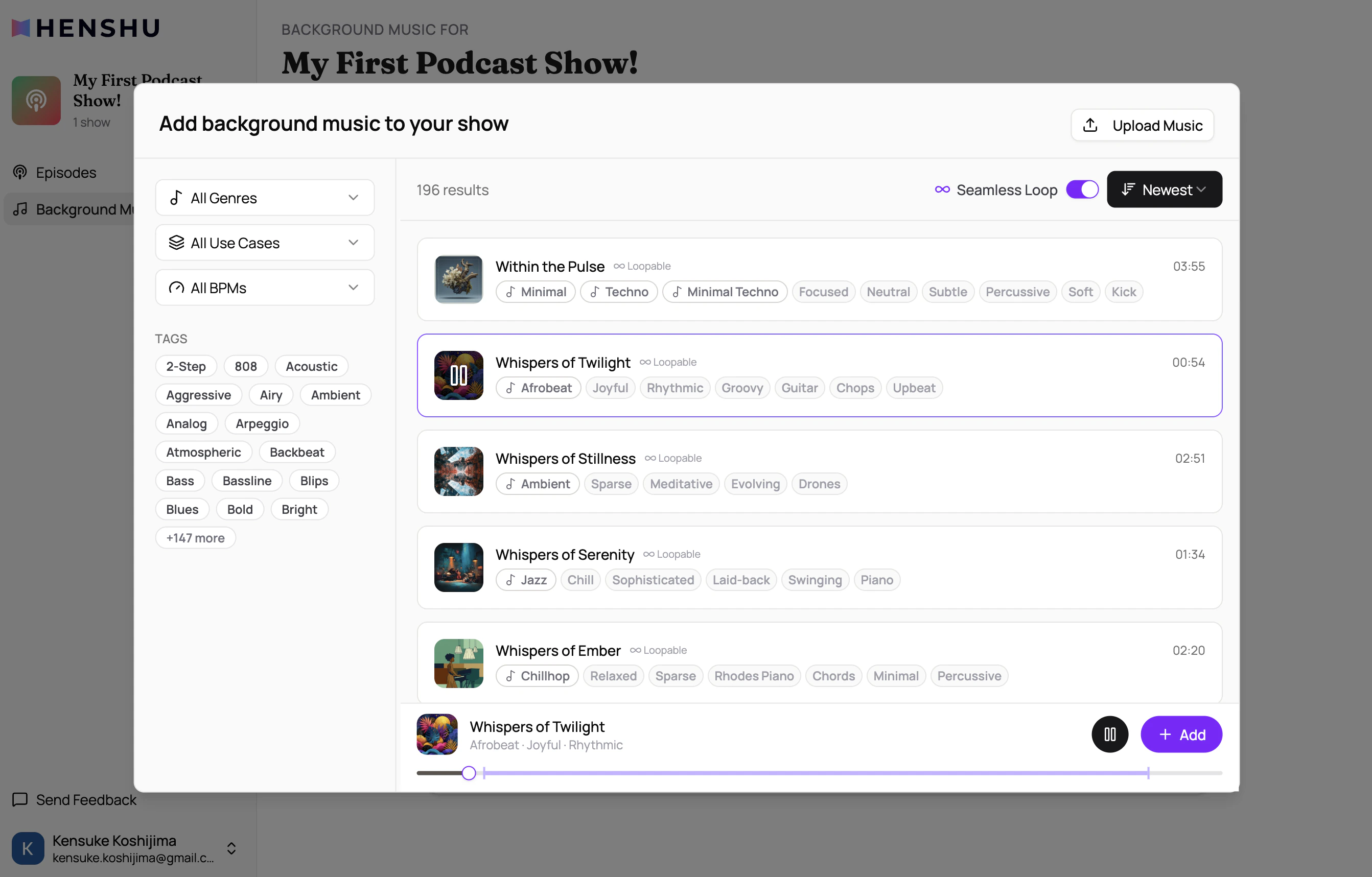
Background music works at two levels. First, you build a music library for your show by browsing Henshu's collection or uploading your own tracks. Then, you assign tracks from that library to individual sections in your episodes. Different sections can have different music, so your intro can have upbeat music while your interview has something subtle.
## Building your show's music library
Before you can add music to sections, you need tracks in your show's library.
**Adding from Henshu's collection:**
1. Open the **BGM panel** in the editor
2. Browse the available tracks
3. Add tracks you like to your show's library
**Uploading your own music:**
If you already have music you want to use (e.g., a custom intro theme), you can upload it directly to your show's BGM library.
Tracks in your show's library are available across all episodes in that show. You only need to add them once.
 ## Adding music to a section
Once you have tracks in your show's library:
1. Select the section you want to add music to
2. Open the **BGM panel** and browse your show's library
3. Click a track to assign it to the section
4. The music plays underneath your voice audio in that section
## How do I adjust BGM settings?
Once a track is assigned to a section, you can configure:
### Volume
Set the music volume relative to your voice audio:
* **Normal:** standard background level
* **Louder:** music is more prominent
* **Quieter:** music sits further back behind voice
### Ducking
When **ducking** is enabled, the music volume automatically lowers during audio blocks and rises back up during pause blocks. This keeps the music from competing with your voice.
### Fade In / Fade Out
Set the duration (in seconds) for the music to fade in at the start of the section and fade out at the end. This creates smooth transitions instead of abrupt starts and stops.
### Play Mode
Choose how the music behaves when the section is longer than the track:
| Mode | Behavior |
| -------------- | --------------------------------------------------------------------- |
| **Once** | Play the track once and stop. Silence for the rest of the section |
| **Loop** | Restart from the beginning when the track ends |
| **Smart Loop** | Crossfade at configured cue points for smooth, natural-sounding loops |
Smart Loop produces the most polished result for sections that are longer than the music track.
## How do I remove BGM from a section?
To remove background music from a section, open the BGM panel for that section and click **Remove** (or deselect the current track). The section will play without any background music.
## Key Details
* BGM is per-section, not per-episode. Different sections can have different music.
* The music library is per-show. Add tracks once and use them across episodes.
* BGM settings (volume, ducking, fades, play mode) are independent for each section.
* Background music is mixed into the final file when you [generate your episode](/publishing/generating).
* BGM does not appear as a waveform in the main editor. It plays during preview and is included in the generated output.
## Common Issues
**Music is too loud and drowning out my voice**
Enable **ducking** to automatically lower the music when voice is playing. You can also set the volume to **Quieter** for a more subtle background level.
**Music isn't looping as expected**
Check the **play mode** setting. If set to "Once," the music stops after one play. Switch to "Loop" or "Smart Loop" for continuous music throughout the section.
**Ducking doesn't seem to be working**
Ducking lowers the music volume during audio blocks and brings it back up during pause blocks. It doesn't analyze the audio content itself. Make sure ducking is toggled on in the BGM settings for that section.
**I don't see any music in the library**
You need to add tracks to your show's library first. Browse Henshu's collection or upload your own music, then assign them to sections.
## Related
* [Editing Your Audio](/editing/editing-audio)
* [Assemble Episode](/publishing/generating)
## Adding music to a section
Once you have tracks in your show's library:
1. Select the section you want to add music to
2. Open the **BGM panel** and browse your show's library
3. Click a track to assign it to the section
4. The music plays underneath your voice audio in that section
## How do I adjust BGM settings?
Once a track is assigned to a section, you can configure:
### Volume
Set the music volume relative to your voice audio:
* **Normal:** standard background level
* **Louder:** music is more prominent
* **Quieter:** music sits further back behind voice
### Ducking
When **ducking** is enabled, the music volume automatically lowers during audio blocks and rises back up during pause blocks. This keeps the music from competing with your voice.
### Fade In / Fade Out
Set the duration (in seconds) for the music to fade in at the start of the section and fade out at the end. This creates smooth transitions instead of abrupt starts and stops.
### Play Mode
Choose how the music behaves when the section is longer than the track:
| Mode | Behavior |
| -------------- | --------------------------------------------------------------------- |
| **Once** | Play the track once and stop. Silence for the rest of the section |
| **Loop** | Restart from the beginning when the track ends |
| **Smart Loop** | Crossfade at configured cue points for smooth, natural-sounding loops |
Smart Loop produces the most polished result for sections that are longer than the music track.
## How do I remove BGM from a section?
To remove background music from a section, open the BGM panel for that section and click **Remove** (or deselect the current track). The section will play without any background music.
## Key Details
* BGM is per-section, not per-episode. Different sections can have different music.
* The music library is per-show. Add tracks once and use them across episodes.
* BGM settings (volume, ducking, fades, play mode) are independent for each section.
* Background music is mixed into the final file when you [generate your episode](/publishing/generating).
* BGM does not appear as a waveform in the main editor. It plays during preview and is included in the generated output.
## Common Issues
**Music is too loud and drowning out my voice**
Enable **ducking** to automatically lower the music when voice is playing. You can also set the volume to **Quieter** for a more subtle background level.
**Music isn't looping as expected**
Check the **play mode** setting. If set to "Once," the music stops after one play. Switch to "Loop" or "Smart Loop" for continuous music throughout the section.
**Ducking doesn't seem to be working**
Ducking lowers the music volume during audio blocks and brings it back up during pause blocks. It doesn't analyze the audio content itself. Make sure ducking is toggled on in the BGM settings for that section.
**I don't see any music in the library**
You need to add tracks to your show's library first. Browse Henshu's collection or upload your own music, then assign them to sections.
## Related
* [Editing Your Audio](/editing/editing-audio)
* [Assemble Episode](/publishing/generating)